Magento Optimization

The Approach You Need Let’s Continue Your Journey.

The performance of Magento is of the utmost importance. Having an optimized Magento installation is essential to the success of your Magento store and maybe even your entire business because loading speed directly and measurably affects your website’s conversion rate. With Magento speed optimization boost your Magento store’s business.

The following are some methods I will present in this article for Magento developers to use to improve their Magento 2 installation:

  • Check third-party modules and find bottlenecks
  • Enable full-page cache
  • Varnish, not files for full-page cache
  • Ensure full-page cache works, it can be broken so easily
  • Enable Production mode
  • CSS/JS minification
  • Enable Flat tables
  • Get the fastest hosting you can afford
  • Optimize images
  • Indexers to “Update on Schedule”
  • GZIP compression
  • Use Elasticsearch on catalog pages and search.
  • Check for unneeded Ajax calls back to the server after page load (may cause session locks)
  • Redis for page cache and session storage

There are many third-party Magento modules available that have bad code, utilize old techniques, or have compatibility problems with the most recent stable version of Magento. Using a profiler is the most effective technique to spot heavy requests. This makes it easier to determine how many MySQL queries are unique and how many are on a single page. Understanding that will enable you to combine those searches into one, which results in speeding up Magento.

Loading models inside loops is one of the primary mistakes made by junior Magento developers. As much as possible, attempt to prevent that. Then, loop through the entire collection after loading it with everything you require. Always keep time and space difficulty in mind when building your algorithm, and do so efficiently.

See how your layout loads and which template blocks are the slowest performing before examining that code. You can get helpful information, such as load calls into loops, by looking at the Model CRUD stats.

Magento Full-page Cache

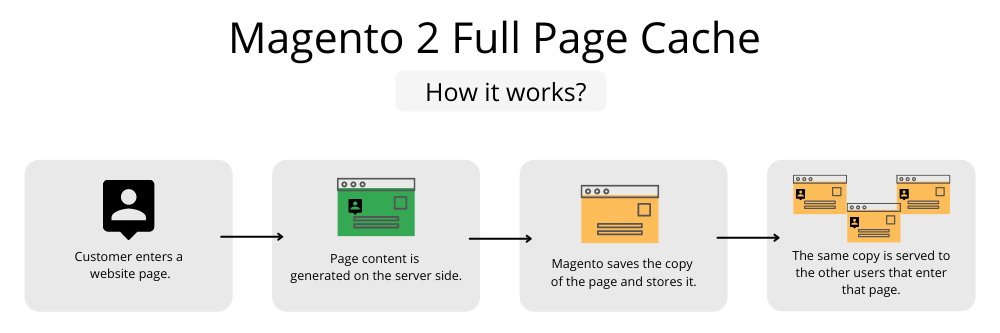
An inquiry is sent to the server when a user accesses your store. PHP processes this request by carrying out particular operations and database queries before returning the relevant HTML to be shown to the user. The next identical request will immediately return that HTML answer since the full-page cache has already saved it, skipping all back-end processing and database queries. As a result, the website responds significantly more quickly.

Utilizing a full-page cache as part of your Magento optimization strategy will significantly speed up your website. Instead of doing all the queries on each request, this will create cached versions of your pages and provide them to the user. For sure, not every page is cached. The cart page, for instance, will not be cached because everyone else would view the initial cached version of the page. They are dynamic pages or sections, user-and session-specific.

To enable Magento full-page cache, you may run the following CLI command:
php bin/magento cache:enable full_page

The following CLI command is to enable cache types:
php bin/magento cache:enable

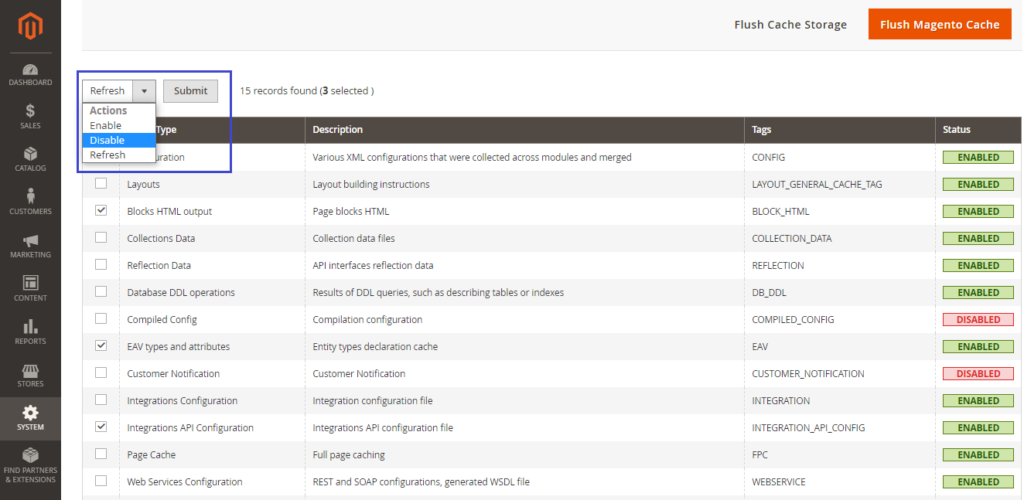
By logging in as an administrator, you may easily do it through the Magento Admin page:
php bin/magento cache:enable full_page

  1. Access System > Tools > Cache Management
  2. Choose the Cache Type you want to activate
  3. In the Actions dropdown select Enable and click Send

Use Varnish for Full-page Cache

Use Varnish rather than files to accomplish full-page cache. Varnish (or Redis) usage is strongly advised by Magento in production. Although Varnish is made to speed up HTTP traffic, the integrated full-page caching (to the file system or database) is a lot slower than Varnish.

Install and configure Varnish instructions are fully detailed in the Magento 2 documentation.

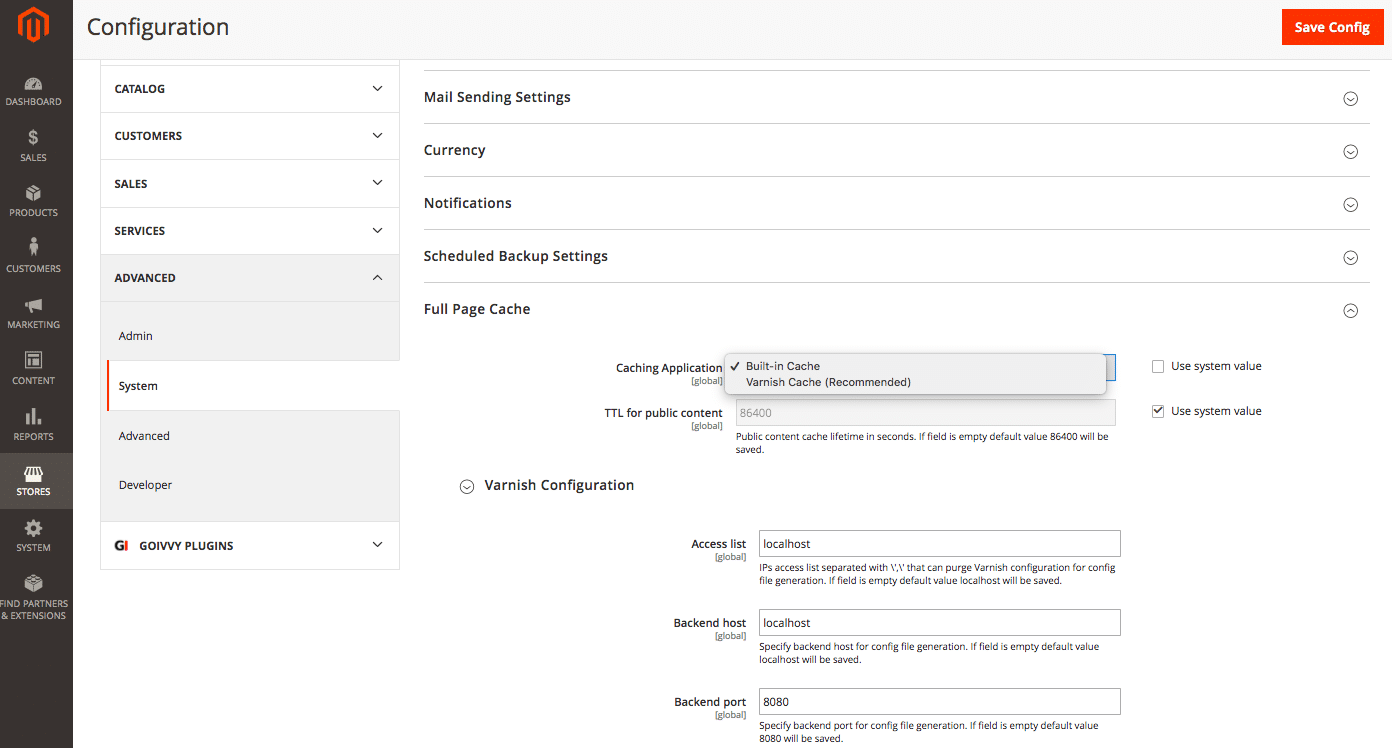
To configure Magento to use Varnish, access the Magento Dashboard as an administrator:

  1. Enter Stores > Configuration > Advanced > System > Full Page Cache
  2. Click Varnish Caching, from the Caching Application list
  3. for the public content field, insert a value in the TTL
  4. Extend Varnish Configuration and enter the precise information about your Varnish configuration

Ensure Full-page Cache Works: It’s Easily Broken

In Magento 2, the full-page cache may be easily broken. For instance, avoid specifying a block with the attribute cacheable=”false” in the XML layout if you wish to prevent it from being cached. By doing this, the cache will be turned off for the entire page that includes that block, not just for that block. I have seen folks make that error.

Check your layouts for the cacheable=”false” attribute and note which blocks they are as well as on which pages those blocks are called. As a result, you can know if simple pages have cache issues.

You can manually check to see if your page has been cached. On your local or stage environment, put the store in developer mode:

  1. Clear Magento cache
  2. Load the page in the browser
  3. Examine the page headers in your browsers debug network tab.
  4. Search X-Magento-Cache-Debug: MISS
  5. Now Refresh the page, as it should change to HIT

If it does not transform to HIT, the cache is not active, and the page is not cached.

Remember to Enable Production Mode

Three running modes, default, developer, and production, are the Magento Modes.

The production mode deployment on a production system is the aimed use. This mode does not let you enable or disable different cache types in Magento Admin, hides exceptions, and only serves static files from cache. Moreover, automated code file compilation is prevented.

The developer mode is on while you’re working on the store. While deploying your site to the live server, remember to switch to production mode!

The CLI command to check the current mode is:
php bin/magento deploy:mode:show

The CLI command to turn to production mode is:
php bin/magento deploy:mode:set production

The CLI command to turn to developer mode is:
php bin/magento deploy:mode:set developer

Here you may get more in-depth details on the various Magento modes.

CSS/JS Minification

The process of Minifying the CSS and JS files is a crucial factor of Magento 2 speed optimization. We eliminate all of the spaces, tabs, and newlines from the files by minifying them. Because the final files will be smaller in size and have fewer characters, they will download more quickly.

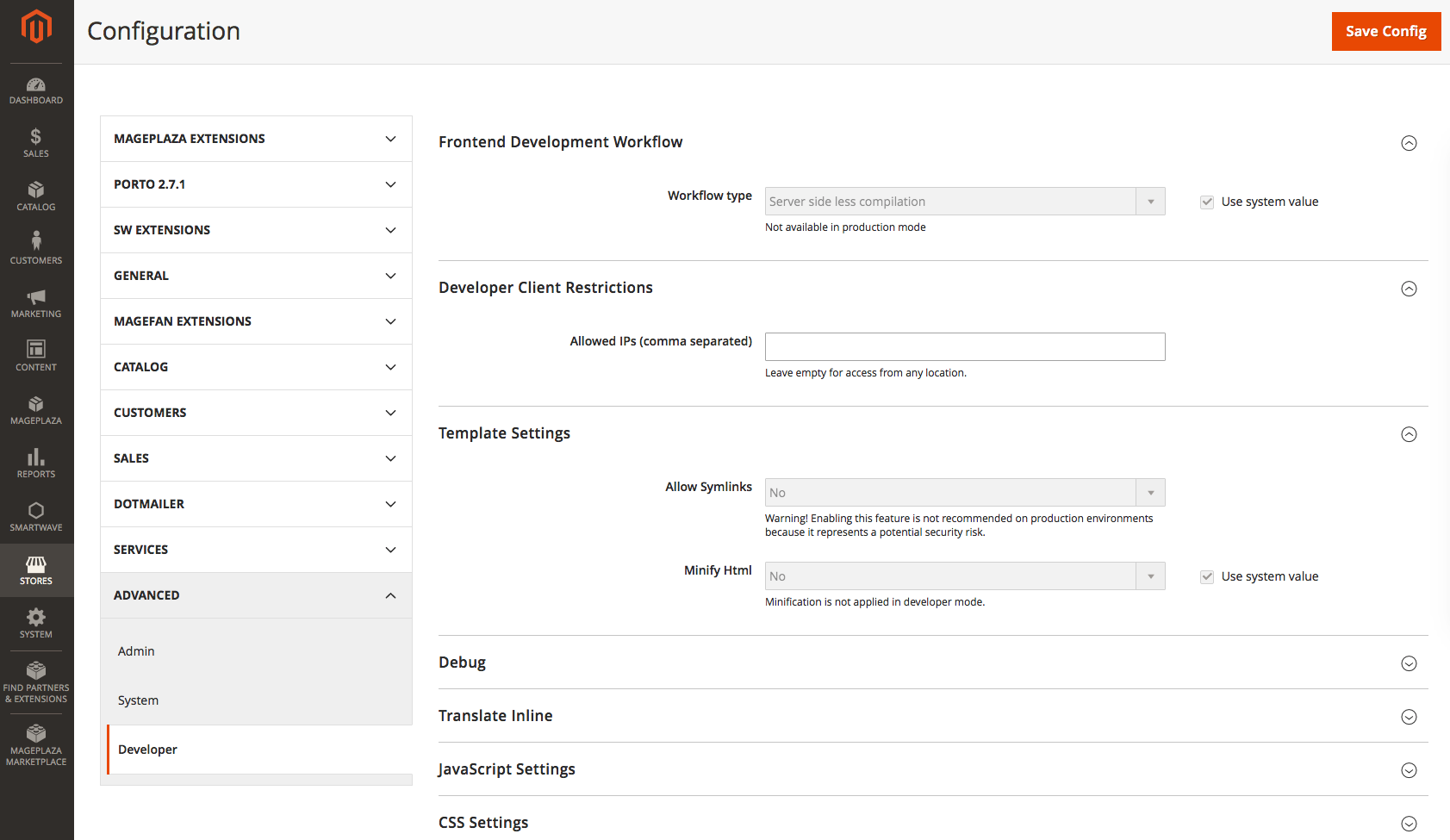
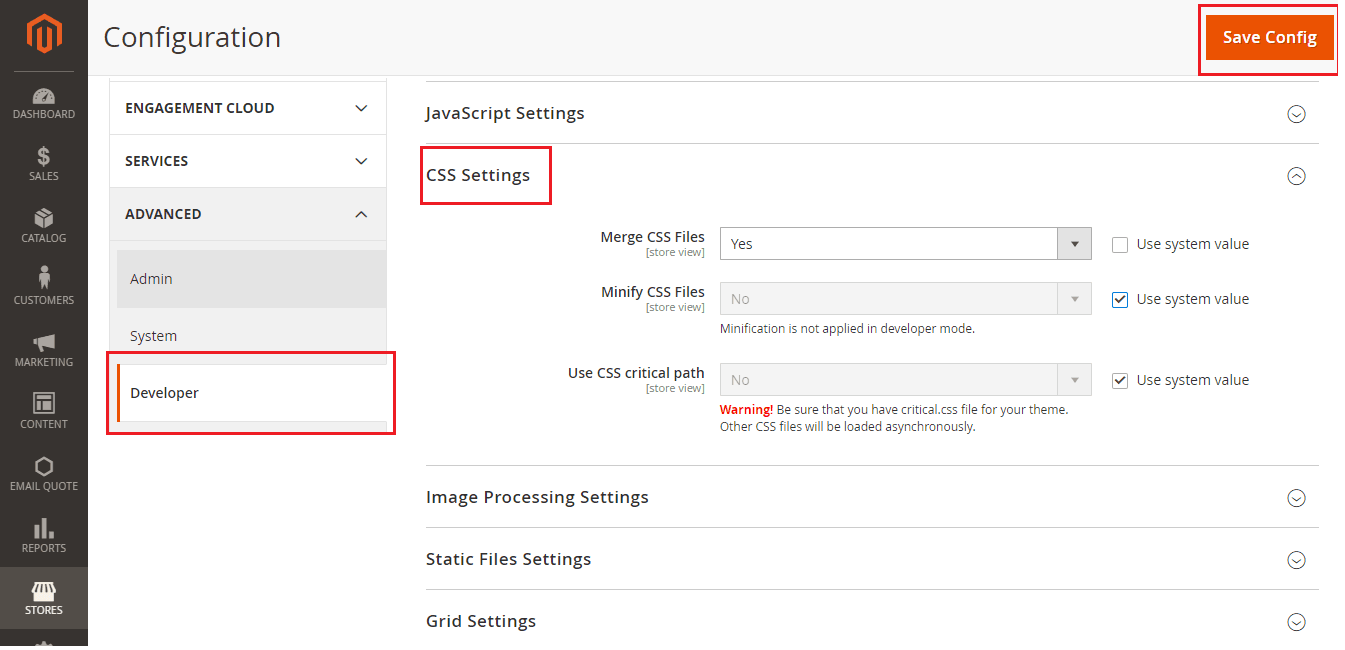
This function is already incorporated into Magento, and you can allow CSS/JS minification in Admin. To enable JavaScript minification, follow the steps below:

  1. Put Magento on production mode
  2. Access Stores > Configuration > Advanced > Developer
  3. Set Minify Javascript Files option to Yes
  4. Save Config
  5. Flush Cache at System > Cache Management page

The steps listed below must be taken in order to enable CSS minification:

  1. Put Magento on production mode
  2. Access Stores > Configuration > Advanced > Developer > CSS Settings
  3. Set Minify CSS Files option to Yes
  4. Save Config
  5. Flush Cache at System > Cache Management page

Reminder: Just minify the JS files, do not combine them.

Enable Flat Tables

Depending on their type of value, the attributes of Magento’s entities are stored in different tables using the EAV (entity attribute value) Model. The data must be retrieved using various tables, joins and requests on numerous tables, which slows down the queries.

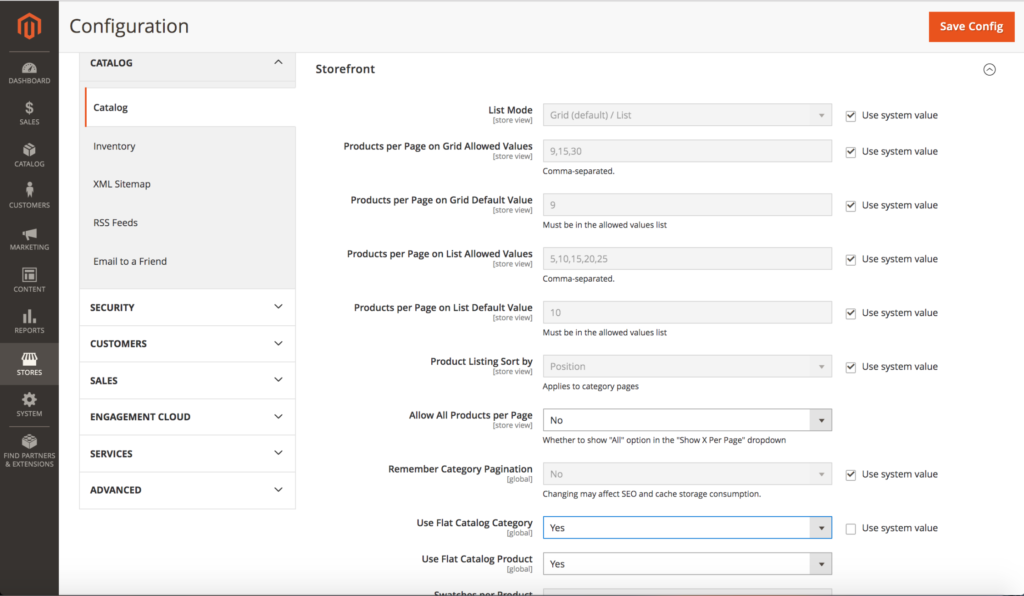
For the catalog and products, Magento gives users the option to use flat tables. All of an entity’s attributes are combined into one table to create flat tables. We just need to query one table when requesting the data, greatly speeding up the process.

With each indexation, Magento creates and updates flat tables. By logging in as an administrator to Magento Admin, you can enable flat tables:

  1. Access Stores > Configuration > Catalog > Catalog > Storefront
  2. Choose Yes for Use Flat Catalog Category
  3. Choose Yes for Use Flat Catalog Product
  4. Save Config

Select Fast Magento Hosting

Verify your server’s compatibility with the Magento minimum requirements. The official Magento 2.2.x technology stack requirements are available here.

The hosting setup has a big impact on how well Magento 2 performs. Dedicated hosting services for Magento are also available. However, they may be more focused on marketing than anything else.

Bottom line: Take advantage of the fastest hosting option you can afford unless your project requires something less.

Magento Image Optimization

Obviously, the size of your images affects how quickly your website loads. For instance, if a catalog page contains 20 products and each product image is 1Mb in size, the page will need to download a total of 20Mb when it loads, which could be problematic in some circumstances (mobile devices, limited bandwidth in certain regions etc.).

Make sure your images are appropriately optimized and have a good ratio between quality and size. Moreover, ensure that the source file for your images is scaled to the precise size you require rather than having CSS resize them.
Lazy loading is another option, which involves loading your images either after the page has fully loaded or while the user scrolls through the catalog.

For much faster content delivery, you can also use AWS or a CDN. Let’s quickly examine how AWS, CDN, and traditional hosting vary from each other in terms of bitmap optimization.

Traditional hosting

The traditional method is to keep your images and other content on the same server as your website. This may consume  disc space and a large amount of bandwidth, which allows for creating a substantial server load. Scaling with traditional hosting can undoubtedly be problematic.

CDN (Content Delivery Network)

A content delivery network is typically used to decrease a server’s load by serving some of a website’s content. In addition, it opens the door for high performance by delivering your content quickly and with high availability by utilizing numerous networks. 

AWS (Amazon CloudFront)

A very secure Content Delivery Network (CDN) is Amazon CloudFront which offers network and application level security. Check out this tutorial to learn how to use AWS and deliver content faster.

Furthermore, you can utilize AWS to instantly resize images depending on dimensions passed via a query parameter. Consult this tutorial on Resizing Images with Amazon CloudFront and Lambda@Edge to learn more information.

Set Indexers to “Update on Schedule”

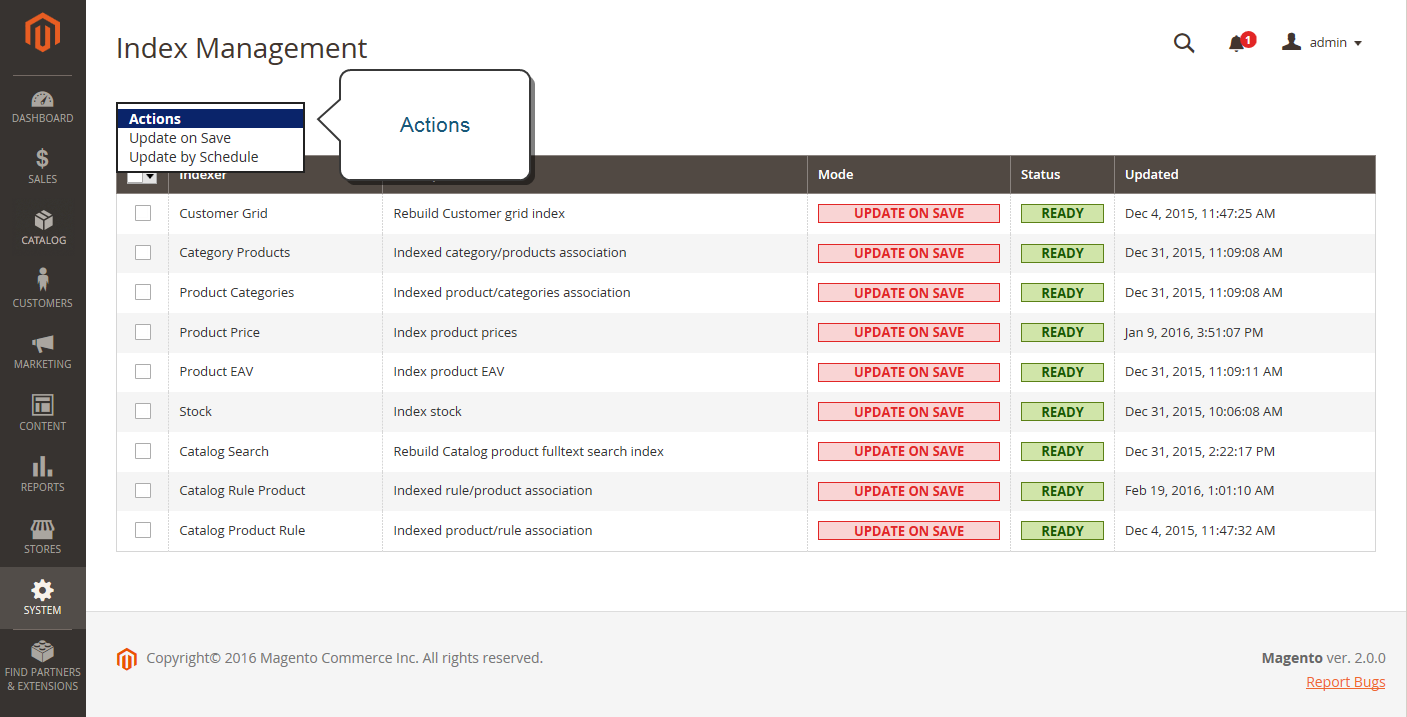
Two modes to which Magento indexers can be set: “Update on Save” or “Update on Schedule.”

The particular index begins to run when they are set to “Update on Save” whenever you save a product, attribute, or category. Indexers can use a lot of resources, which could cause your server to lag.

Update on Schedule” is the best mode to set the indexers. By doing this, you can be certain that they will be carried out by the cron job at the time that you choose. When there is low traffic on your website, it is your perfect time.

Run the following command to see the current indexers mode:
php bin/magento indexer:show-mode

Or in Magento Admin access:
System > Index Management

Run the following command to change the indexers mode toUpdate on Schedule”:
php bin/magento indexer:set-mode schedule

Run the following command to change the indexers mode toUpdate on Save”:
php bin/magento indexer:set-mode realtime

And here it is in Magento Admin:

System > Index Management: Choose all indexers and from Actions dropdown select “Update on Schedule”

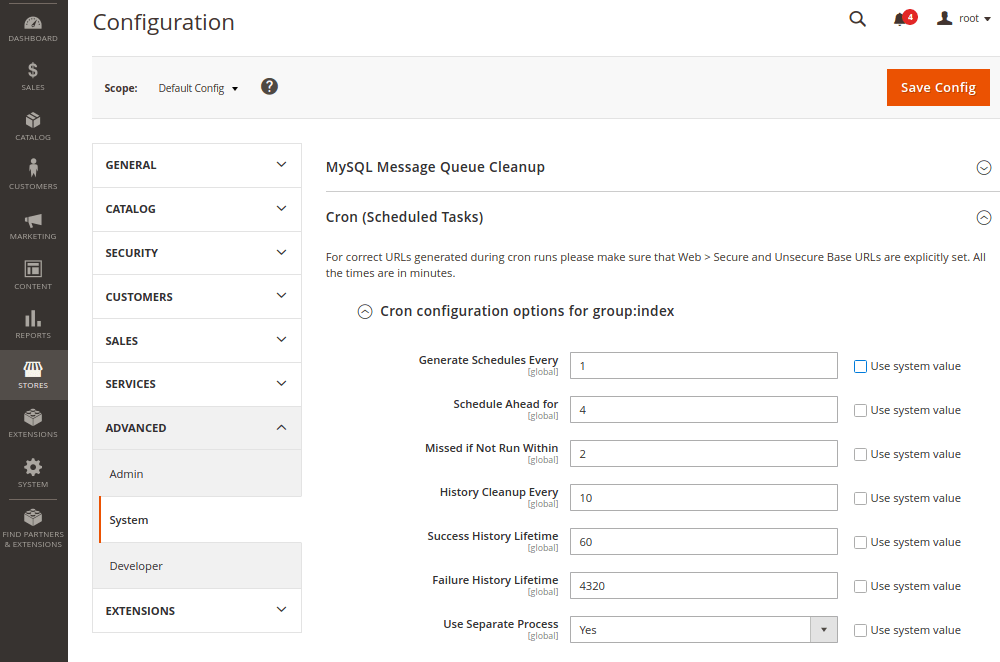
By going into Admin, you can also set the scheduled tasks:

Store then Settings then Configuration then Advanced
then System then Cron
(Scheduled Tasks)

Expand “Cron configuration options for group: index”

GZIP Compression

Gzip is a file compression method that quickens network transfers. Your web server can offer customers smaller files that load faster by using compression. However, there is a cost associated with this.

The CPU is loaded while compressing a file, and the more compression you apply, the longer the operation will take. Although this can raise the server CPU load, it might also significantly reduce bandwidth use. You can select between different compression levels with gzip that range from 1 to 9.

Although level 1 has a lower compression ratio, it has the fastest compression time. Level 9 has the maximum compression rate but the slowest speed, on the other hand.

Gzip’s default configuration utilizes level 6, which prioritizes compression above speed. Nevertheless, Nginx utilizes level 1, prioritizing speed above file size.

You may add this by modifying your .htaccess file and uncommenting the relevant lines as shown below, to switch on gzip compression and activate the mod_deflate module of Apache. Before sending static resources to the browser, the mod_deflate module compresses them into smaller files.

<IfModule mod_deflate.c>
############################################
## enable apache served files compression
## http://developer.yahoo.com/performance/rules.html#gzip
    # Insert filter on all content
    SetOutputFilter DEFLATE
    # Just on the selected content types, Insert filter
    AddOutputFilterByType DEFLATE text/html text/plain text/xml text/css text/javascript application/javascript application/x-javascript application/json image/svg+xml
    # Netscape 4.x has some issues…
    BrowserMatch ^Mozilla/4 gzip-only-text/html
    # Netscape 4.06-4.08 have some more issues
    BrowserMatch ^Mozilla/4\.0[678] no-gzip
    # MSIE pretend as Netscape. Still, it is fine.
    BrowserMatch \bMSIE !no-gzip !gzip-only-text/html
    # Don’t compress images
    SetEnvIfNoCase Request_URI \.(?:gif|jpe?g|png)$ no-gzip dont-vary
    # Ensure proxies deliver the right content
    Header append Vary User-Agent env=!dont-vary
</IfModule>

Use Elasticsearch on Catalog Pages and Search

Using Elasticsearch for catalog pages and search results is another option with which you can speed up your website. Connect your magento store to your Elasticsearch server after setting it up. Elasticsearch allows for considerably faster searching.

This official guide shows how to set up Magento with Elasticsearch.

Log into the Magento Admin as an administrator to set up Magento to use Elasticsearch:

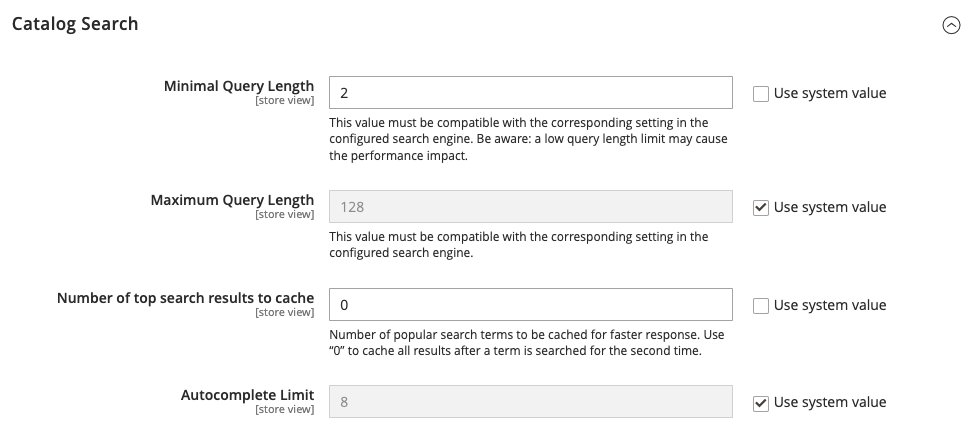
  1. Click on Stores > Settings > Configuration > Catalog > Catalog > Catalog Search.
  2. From the Search Engine list, click Elasticsearch or Elasticsearch 5.0+, as the following figure shows. (The Elasticsearch 5.0+ option is not available for Magento 2.1.)

Check for Unnecessary Ajax Calls

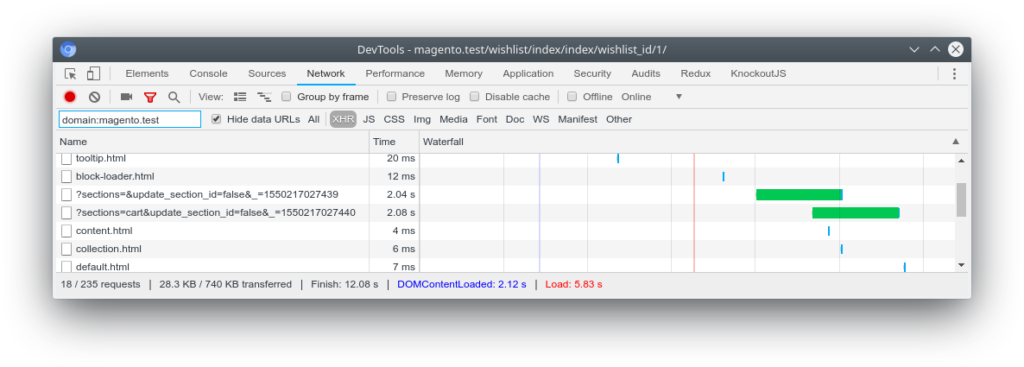
When the page has loaded, calls back to the server may result in session locks. Using Chrome’s DevTools is a technique to look for all the Ajax calls that your page is doing. If you right-click on the page and choose Inspect, you can access it.
The request can be filtered by XHR by going to the network tab. You may now view all of the page’s Ajax requests and determine which ones are required for that specific page by checking them.

Redis for Page Cache and Session Storage

Zend_Cache_Backend_File, which is the back-end cache solution that Magento 2 by default uses, can be replaced by Redis.

So, Let’s Ask Why Use Redis?
Using Redis can have a variety of benefits:

  • Redis can take the role of memcached since it can be utilized for PHP session storage as well.
  • Memcached does not support on-disk save or master/slave replication, which is a highly requested functionality. High availability is made possible by replication, which prevents a single point of failure.
  • As Redis operates by indexing tags in files, tag operations do not need a complete scan of every cache file.
  • Without for-each loops, the back-end offers tag-based cache clean-up.

The major disadvantage is as follows:

  • Since Redis is an in-memory store, all of your data needs to fit there, so it is just limited by RAM capacity and speed.

What about Configure Magento to use Redis for session storage:

Following you will find a sample configuration to add to <your Magento install dir>app/etc/env.php:

‘session’ =>
array (
  ‘save’ => ‘redis’,
  ‘redis’ =>
  array (
    ‘host’ => ‘127.0.0.1’,
    ‘port’ => ‘6379’,
    ‘password’ => ”,
    ‘timeout’ => ‘2.5’,
    ‘persistent_identifier’ => ”,
    ‘database’ => ‘2’,
    ‘compression_threshold’ => ‘2048’,
    ‘compression_library’ => ‘gzip’,
    ‘log_level’ => ‘1’,
    ‘max_concurrency’ => ‘6’,
    ‘break_after_frontend’ => ‘5’,
    ‘break_after_adminhtml’ => ’30’,
    ‘first_lifetime’ => ‘600’,
    ‘bot_first_lifetime’ => ’60’,
    ‘bot_lifetime’ => ‘7200’,
    ‘disable_locking’ => ‘0’,
    ‘min_lifetime’ => ’60’,
    ‘max_lifetime’ => ‘2592000’
  )
),

Here you can check all the details regarding the parameters and instructions on how to perform a quick check to ensure that  your Redis installation works well together with your Magento.

To configure Redis for the page and default cache, there are two methods. You are able to manually edit <Magento install dir>app/etc/env.php file or you can utilize the command line, which is advised because it additionally offers validation.

To access the default cache, run this command:
php bin/magento setup:config:set –cache-backend=redis –cache-backend-redis-<parameter_name>=<parameter_value>…

Determine exactly the parameters that are specific to Redis default caching.
Run this command for the page cache:
Php bin/magento setup:config:set –page-cache=redis –page-cache-redis-server=redis.example.com –page-cache-redis-db=1

Redis page caching is enabled by this command, the host is set to redis.example.com, and the database number is assigned to 1. On the Magento DevDocs, you can review all the information.


Summary of Magento Performance Optimization

Let’s quickly recap as we have already discussed some approaches to Magento 2 optimization of performance.

What significantly makes a difference in processing your data is determining and solving bottlenecks. Moreover, Varnish and full-page caching will increase the speed of your website and speed up HTTP traffic. There are no excuses for not using Magento in production mode on your live server. Reduce the size of CSS and JS files with the usage of minification; a smaller file will download more quickly and consume less bandwidth.

To reduce database requests and speed up database response time, enable flat tables. Use a CDN if you can, and optimize your images. Schedule indexer updates and allow the Magento cron. If gzip compression is enabled, the size of the files that will be downloaded will be smaller as well. The speed of your catalog pages will be faster, and the search results page load will load much quicker if you use Elasticsearch. Use Redis instead of the default memcache for page caching and session storage because it is much faster.

You can follow all of these suggestions or simply the ones you have not used before. It should be possible to enhance Magento performance with just a couple, which should ideally result in more conversions.

UNDERSTANDING THE BASICS

With powerful tools for B2C, B2B, and B2B2C, Magento is an advanced E-commerce platform built on open-source technology that goes beyond the shopping cart system.

Magento is written in PHP.

An automated and managed hosting platform for Magento designed exclusively for cloud infrastructures is called Magento Commerce Cloud. With a few differences and new features, this version integrates cloud infrastructure hosting and Magento Commerce.

Magento 2 is created for flexibility and built for growth. It can provide a seamless purchasing experience, lower business expenses, automate repeating tasks, and minimize the need for long hours of manual effort. You can go to market rapidly with Magento because it is also flexible and user-friendly.

Enable flat tables and use Varnish and full-page cache. Minify CSS and JS files. Use a CDN if you can, and optimize your images. Schedule updates for indexers. Activate gzip compression and Magento cron. For search and catalog, use Elasticsearch. Utilize Redis for session storage and page cache.

Both a free and a paid version of Magento 2 are accessible. Magento Open Source and Magento Commerce are the available solutions. It is free, everyone may use Magento Open Source. There is a paid solution called Magento Commerce that can additionally be hosted in Magento’s own cloud, Magento Commerce Cloud.

Magento Optimization – The Door to Efficiency

This site is registered on wpml.org as a development site. Switch to a production site key to remove this banner.